

Download Information
Availability: In stock. This product is delivered as an instant digital download.
Download the plugin installer for your device here.
To obtain a license, purchase the plugin or start a subscription free trial (can be cancelled any time).
After installation, open the plugin in your DAW and sign in with your email address and password to unlock it.
HE2 Harmonic Enhancer
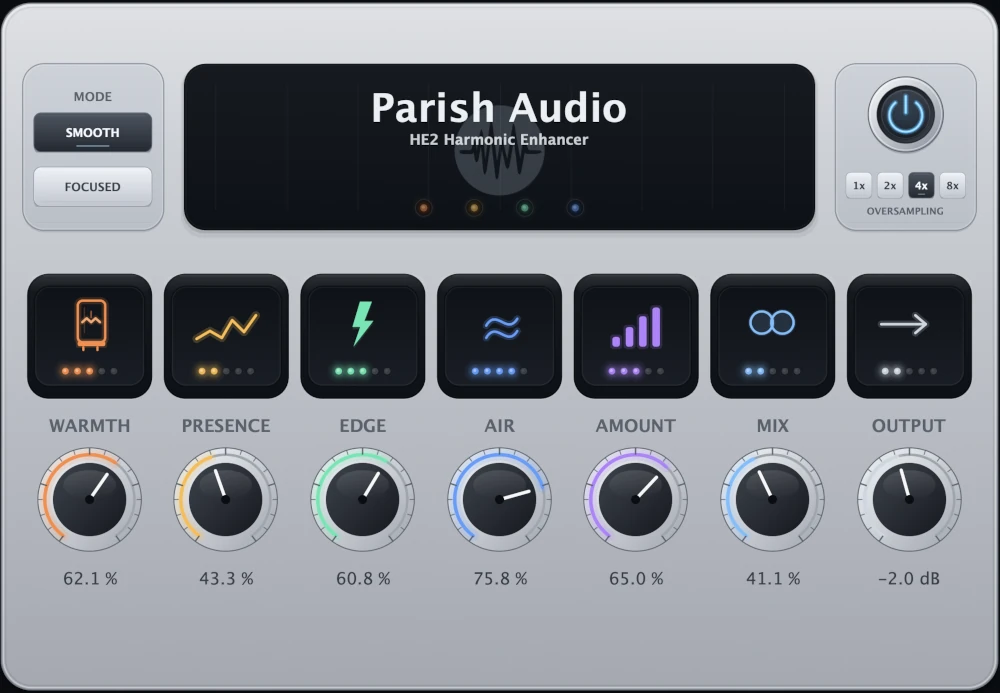
Bring more warmth, clarity, and harmonic richness to your music with HE2 Harmonic Enhancer. Shape the body, presence, bite, and air of your sound with four dedicated enhancement controls and two distinct processing modes. From subtle polish to bold harmonic character, HE2 helps your favorite tracks sound even better.
(0 reviews)
Purchase this plugin
$49.95
$24.97
Sale price applied automatically at checkout.
One-time purchase. Add this plugin to your cart and own it permanently.
Subscription
Try it free for 7 days with an all access subscription.
$9.95 per month for access to all plugins. Cancel anytime.
Overview
You've got a sound you like, but what if you could bring out even more of its character? A little extra warmth in a vocal, more definition in a guitar, a punchier snare, or some added sparkle across an entire mix. HE2 Harmonic Enhancer gives you a flexible way to add richness, presence, and detail by generating new harmonic content that complements your original sound. HE2 gives you direct control over the harmonic character of your audio, with four dedicated controls that shape different parts of the frequency spectrum. Warmth brings out richness and weight in the low end, Presence adds midrange definition, Edge introduces bite and energy, and Air adds brightness and sparkle. Each control works independently, so you can enhance just the areas you want or combine them for a fuller, more detailed sound. Whether you're making subtle adjustments or adding more noticeable character, it's easy to shape the enhancement to fit your music. You also have two distinct processing modes to explore. Smooth delivers a softer, more rounded style of harmonic enhancement that's great for gentle polishing, subtle warmth, and adding a little extra life to a track. Focused offers a more assertive response, bringing out stronger harmonic character, attack, and presence when you want your sound to stand out. Switching between them makes it easy to explore different tonal directions without changing your entire setup. Getting the right balance is simple. Use Amount to control the overall strength of the harmonic enhancement, then adjust the individual tonal controls to shape the result. The Mix knob lets you blend the processing with your original audio, so you can add just a hint of extra detail or make the enhancement a more noticeable part of the sound. HE2 also includes up to 8x oversampling to help reduce digital aliasing, particularly when using stronger settings. There's plenty of room to experiment. Add some harmonic warmth and definition to a bass guitar, bring out the articulation of a vocal, give acoustic instruments more presence, or add a little extra energy to drums and percussion. HE2 also works well on instrument buses and full mixes when you're looking for a subtle layer of richness and polish. Whether you want gentle enhancement that blends naturally into your music or a bolder sound with more bite and character, HE2 gives you the flexibility to get there. It's a versatile harmonic enhancement VST plugin that makes it easy to bring something extra to your sound without overcomplicating your workflow. Available in VST3 format for Windows and VST3 and AU formats for macOS.
Highlights
Add harmonic warmth, presence, bite, and air to vocals, guitars, bass, drums, instruments, and full mixes.
Choose between Smooth and Focused processing modes for everything from subtle tonal enhancement to a more energetic, forward sound.
Shape four different tonal regions independently with dedicated Warmth, Presence, Edge, and Air controls.
Fine-tune the overall enhancement with Amount and Mix controls, with up to 8x oversampling for cleaner harmonic processing.
Available for Windows (VST3) and macOS (VST3 and AU).
Controls
Adds harmonic richness and weight to the lower frequencies of your sound. Turn it up to give bass more fullness, add body to vocals, or bring a little extra warmth to instruments and mixes. Great for making a sound feel richer and more substantial without relying entirely on an EQ boost.
Brings out harmonic detail in the midrange, helping instruments and vocals feel clearer and more forward. Use it to add articulation to a vocal, bring out the definition in guitars and keyboards, or help individual tracks stand out in a busy arrangement. Keep it subtle for a little extra clarity, or turn it up when you want a more noticeable sense of presence and energy.
Adds bite, attack, and harmonic energy to the upper midrange. Great for bringing out the snap of a snare, the attack of a guitar, or the detail of a more aggressive performance. Use lower settings for a touch of definition, or increase it when you want a sharper, more energetic character.
Adds harmonic detail and openness to the highest frequencies of your sound. Use it to give vocals a little extra sparkle, bring out the shimmer in acoustic instruments, or add a sense of brightness and polish to a mix. Keep it low for subtle enhancement, or increase it when you want more noticeable top-end energy.
Blends HE2's processed signal with your original audio. Keep it low to introduce a little extra harmonic detail while retaining more of the untreated sound, or turn it up to bring the enhancement further forward. Great for dialing in subtle harmonic richness on full mixes or blending stronger processing into individual tracks.
Controls the overall strength of HE2's harmonic enhancement. The Warmth, Presence, Edge, and Air controls determine which areas receive enhancement, while Amount adjusts their combined intensity. Keep it low for subtle tonal improvements, or increase it when you want a richer, more pronounced effect. It's a convenient way to adjust the overall enhancement without changing the balance of your individual tonal settings.
Adjusts the final volume coming out of HE2. Use it to balance the processed signal with the rest of your mix or match the original volume when comparing settings. Matching levels is especially useful with harmonic enhancement, since even a small increase in loudness can make a sound seem more exciting.
Choose between two different harmonic processing styles to match the character you're looking for. Smooth: A softer, more rounded approach to harmonic enhancement. Great for adding gentle warmth, richness, and polish while keeping the effect smooth and natural. Try it on vocals, acoustic instruments, mix buses, or anywhere you want a subtle enhancement. Focused: A more assertive processing style that brings out stronger harmonic character, definition, and presence. Great for adding bite to guitars, making drums more energetic, or helping individual instruments stand out in a dense mix. Try switching between the two modes to hear how each one brings out different qualities in your sound.
Controls the internal processing quality, with 1x, 2x, 4x, and 8x options. Higher oversampling settings help reduce digital aliasing created during harmonic processing, particularly when using stronger enhancement settings. They also require more CPU power. Use lower settings when you want to conserve processing resources, or increase oversampling when you're looking for cleaner results during mixing and final rendering.
Turns HE2's harmonic processing on or off. Use it to quickly compare your enhanced sound with the original without removing the plugin from your signal chain.
Suggested Plugins
Explore a few more Parish Audio plugins that you might like.
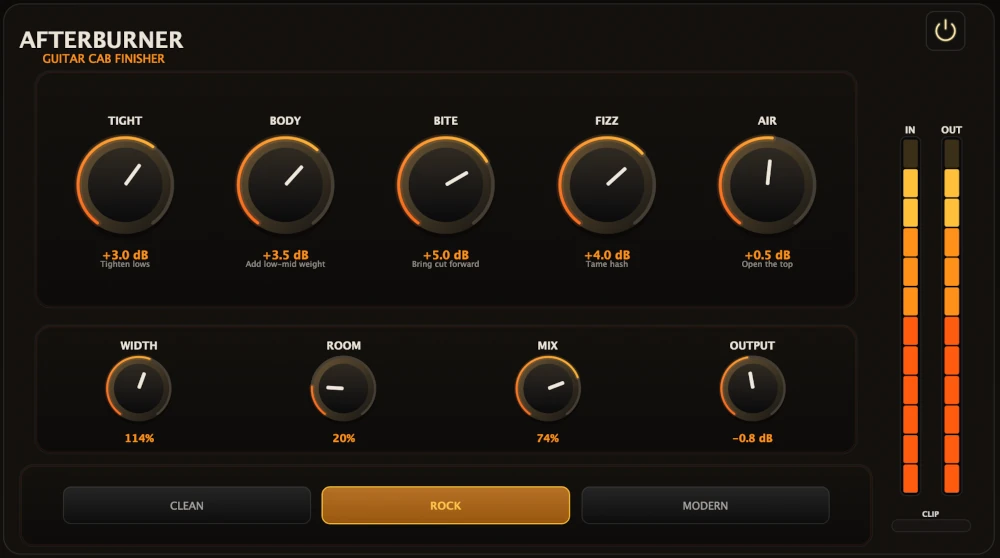
Afterburner Guitar Cab Finisher
5 (2)
Bring out more harmonic depth, sustain, punch, and presence from your favorite guitar tones.
$99.95
$39.95
View
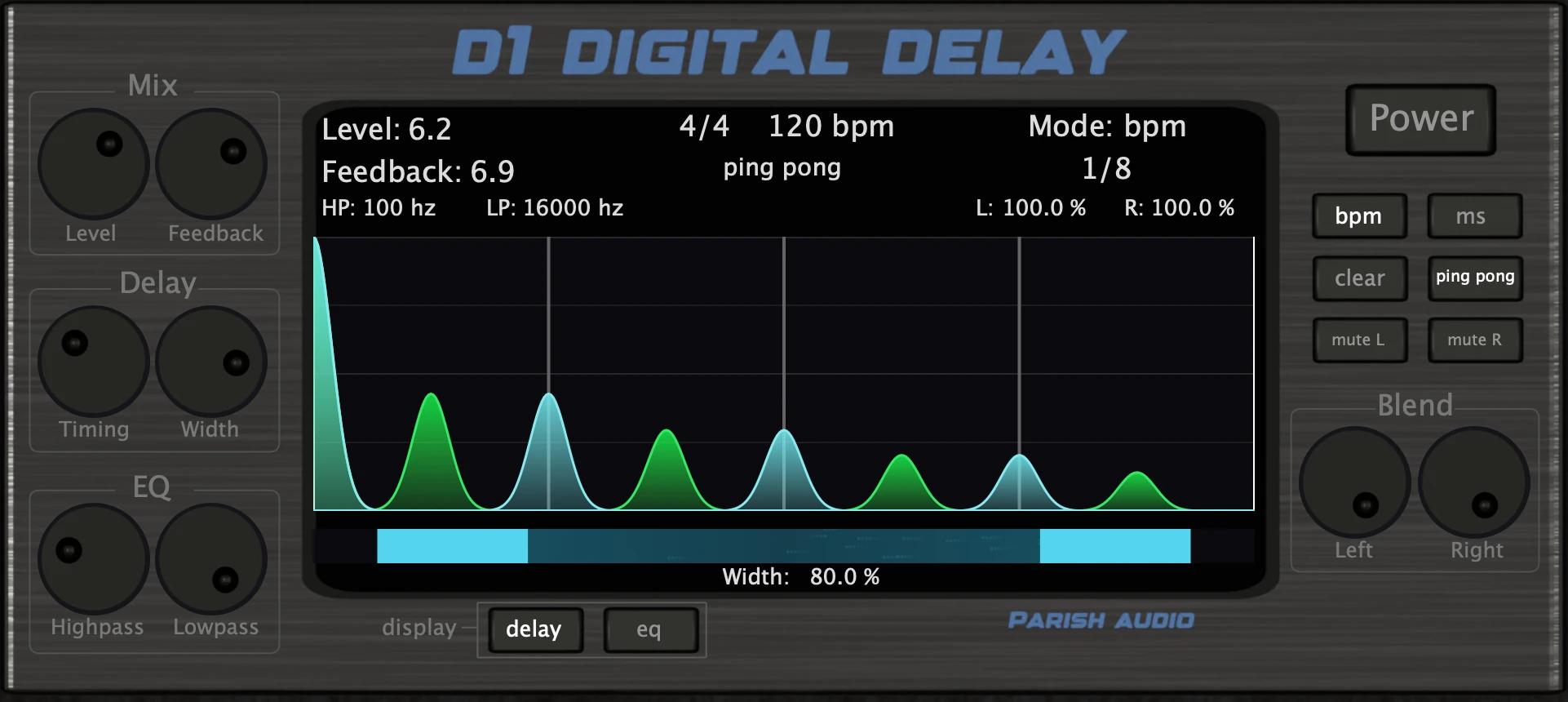
D1 Delay
5 (2)
A versatile delay plugin for everything from subtle echoes to wide, rhythmic stereo effects.
$99.95
$49.95
View
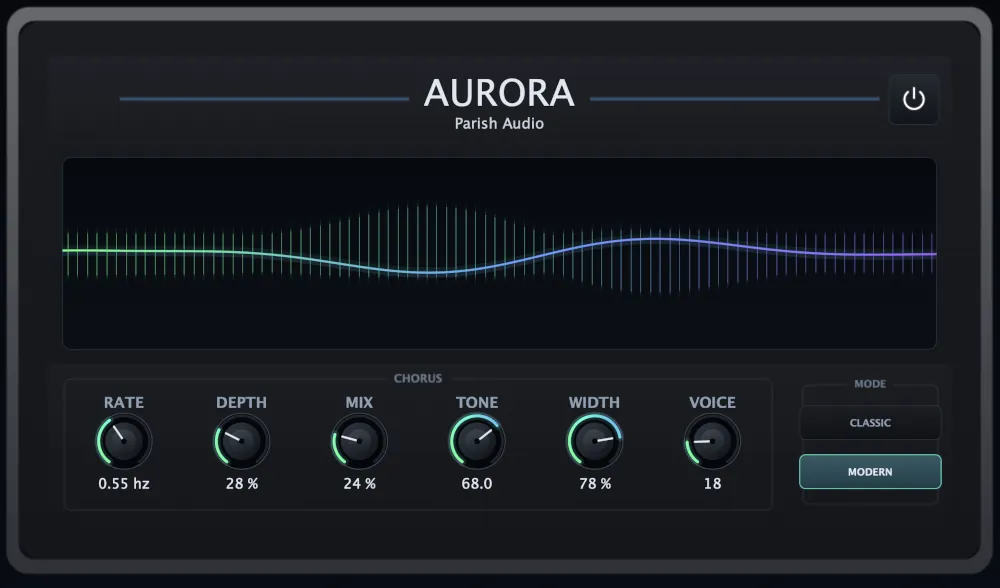
Aurora Chorus
5 (1)
A versatile chorus plugin for adding width, richness, and smooth, expressive movement.
$99.95
$49.95
View
Format: