

Parish Audio
Fall Sale
40% OFF
All Plugins and Bundles
Through October 15
Discount applied automatically
Download Information
Availability: In stock. This product is delivered as an instant digital download.
Download the plugin installer for your device here.
To obtain a license, purchase the plugin or start a subscription free trial (can be cancelled any time).
After installation, open the plugin in your DAW and sign in with your email address and password to unlock it.
Product Demo
E42 Equalizer
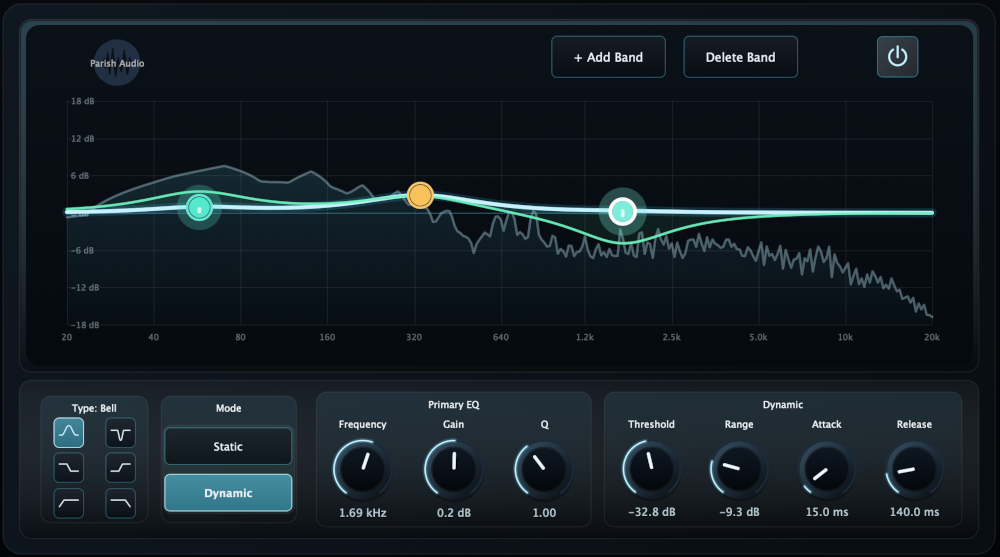
Shape your sound with precision and flexibility using E42 Equalizer. This powerful 10-band parametric and dynamic EQ plugin lets you fine-tune your tone, control changing frequencies, and bring out the best in your tracks with an intuitive visual interface.
(0 reviews)
Purchase this plugin
$69.95
$41.97
Sale price applied automatically at checkout.
One-time purchase. Add this plugin to your cart and own it permanently.
Subscription
Try it free for 7 days with an all access subscription.
$9.95 per month for access to all plugins. Cancel anytime.
Overview
A great EQ is one of the most useful tools you can have when mixing. Whether you're adding warmth to a vocal, bringing out the punch in your drums, shaping a guitar tone, or fine-tuning an entire mix, having the right control over your frequencies makes all the difference. E42 Equalizer gives you the flexibility of a traditional parametric EQ along with the added power of dynamic EQ processing, all in one easy-to-use plugin. With up to ten adjustable bands, you have plenty of room to shape your sound. Make broad adjustments to the overall tone, boost frequencies you want to bring forward, or precisely target areas that need attention. Choose from Bell, Low Shelf, High Shelf, High Pass, Low Pass, and Notch filters to handle everything from gentle tonal shaping to more detailed frequency control. You can even drag bands directly on the interactive EQ graph to quickly find the sound you're looking for. What makes E42 especially useful is its dynamic processing. Sometimes a frequency sounds great most of the time but becomes too prominent on certain notes or phrases. Instead of cutting that frequency throughout the entire recording, you can switch a compatible band to Dynamic mode and let the EQ respond when it's needed. Tame harshness when a vocal gets louder, keep bass frequencies under control when they build up, or bring out extra presence during specific moments without constantly adjusting automation. Each dynamic band gives you control over Threshold, Range, Attack, and Release, letting you decide when the EQ responds, how strongly it reacts, and how quickly it adjusts. Use gentle settings for subtle, natural-sounding control, or dial in a more noticeable response when you want to reshape the dynamics of a particular frequency range. E42 also includes a real-time spectrum analyzer and interactive frequency response display, making it easy to see what's happening as you work. Whether you're making a quick tonal adjustment or building a more detailed combination of static and dynamic bands, the visual feedback helps you understand how your changes affect the sound. From vocals and guitars to drums, bass, instruments, and full mixes, E42 Equalizer gives you a versatile set of tools for shaping tone and controlling frequencies. Whether you need a straightforward EQ or more advanced dynamic processing, it's ready to handle both. Available as a VST3 EQ plugin for Windows and in VST3 and AU formats for macOS.
Highlights
Shape your sound with up to ten adjustable EQ bands for everything from broad tonal changes to precise frequency adjustments.
Combine traditional parametric EQ with dynamic processing that responds automatically as your audio changes.
Choose between Bell, Low Shelf, High Shelf, High Pass, Low Pass, and Notch filters for flexible tone shaping.
Control dynamic frequencies with adjustable Threshold, Range, Attack, and Release, and see your changes on the real-time spectrum display.
Available for Windows (VST3) and macOS (VST3 and AU).
Controls
Turns E42 Equalizer's processing on or off. Use it to quickly compare your original sound with the EQ adjustments you've made.
Adds a new EQ band to the frequency graph. Use up to ten bands at once to create anything from simple tone adjustments to more detailed EQ curves with multiple static and dynamic bands.
Removes the currently selected EQ band. Handy for simplifying your EQ curve or removing adjustments you no longer need.
Choose the filter shape that works best for what you're trying to accomplish. Bell: Boosts or cuts a selected range of frequencies. Great for adding warmth, bringing out presence, or reducing unwanted resonances. Low Shelf: Raises or lowers the frequencies below a selected point. Useful for adjusting bass and low-end weight. High Shelf: Raises or lowers the frequencies above a selected point. Great for adding brightness, air, or smoothing out the top end. High Pass: Removes frequencies below the selected cutoff. Useful for cleaning up low-end rumble and unnecessary bass frequencies. Low Pass: Removes frequencies above the selected cutoff. Use it to soften high frequencies or create a darker sound. Notch: Cuts a narrow range of frequencies. Great for targeting specific resonances or unwanted tones.
Works like a traditional parametric EQ, applying a fixed adjustment to the selected frequency range. Use it for everyday tone shaping, such as adding some warmth to a vocal, bringing out guitar presence, or balancing the low end of a mix.
Lets a compatible EQ band respond automatically to changes in your audio. Instead of applying the same adjustment all the time, the band changes its gain when the selected frequency range crosses your Threshold. Great for controlling occasional harshness, managing low-end buildup, or bringing out certain frequencies only when they're needed.
Sets the frequency where the selected EQ band operates. Move it lower to work with bass and low-mid frequencies, or higher to shape presence, brightness, and air. You can also position bands directly on the EQ graph.
Controls how much a selected frequency range is boosted or reduced. Increase it to bring out more of that part of your sound, or decrease it to make room for other frequencies. Use broad adjustments for overall tone shaping or smaller changes for more subtle refinement.
Adjusts how wide or narrow the selected EQ band is. Lower Q settings affect a broader range of frequencies, making them great for smooth tonal adjustments. Higher Q settings focus on a narrower area, which is useful for targeting specific resonances or making precise corrections.
Sets the signal level that activates a dynamic EQ band. Lower the Threshold to make the band respond more often, or raise it so processing only happens when the selected frequency range becomes more prominent.
Controls how much gain a dynamic EQ band can add or remove when triggered. Use negative values to reduce frequencies that become too strong, or positive values to bring certain frequencies forward when they cross the Threshold. Smaller adjustments work well for subtle control, while larger values create a more noticeable dynamic response.
Controls how quickly a dynamic band responds when the signal crosses the Threshold. Faster settings react quickly to short peaks and sudden changes, while slower settings produce a more gradual response. Use it to fine-tune how naturally or aggressively the EQ follows your audio.
Adjusts how quickly a dynamic band returns to its normal setting after the signal drops below the Threshold. Shorter settings let the EQ recover quickly, while longer settings create smoother, more gradual changes. Experiment with different Release times to match the rhythm and character of your track.
Suggested Plugins
Explore a few more Parish Audio plugins that you might like.
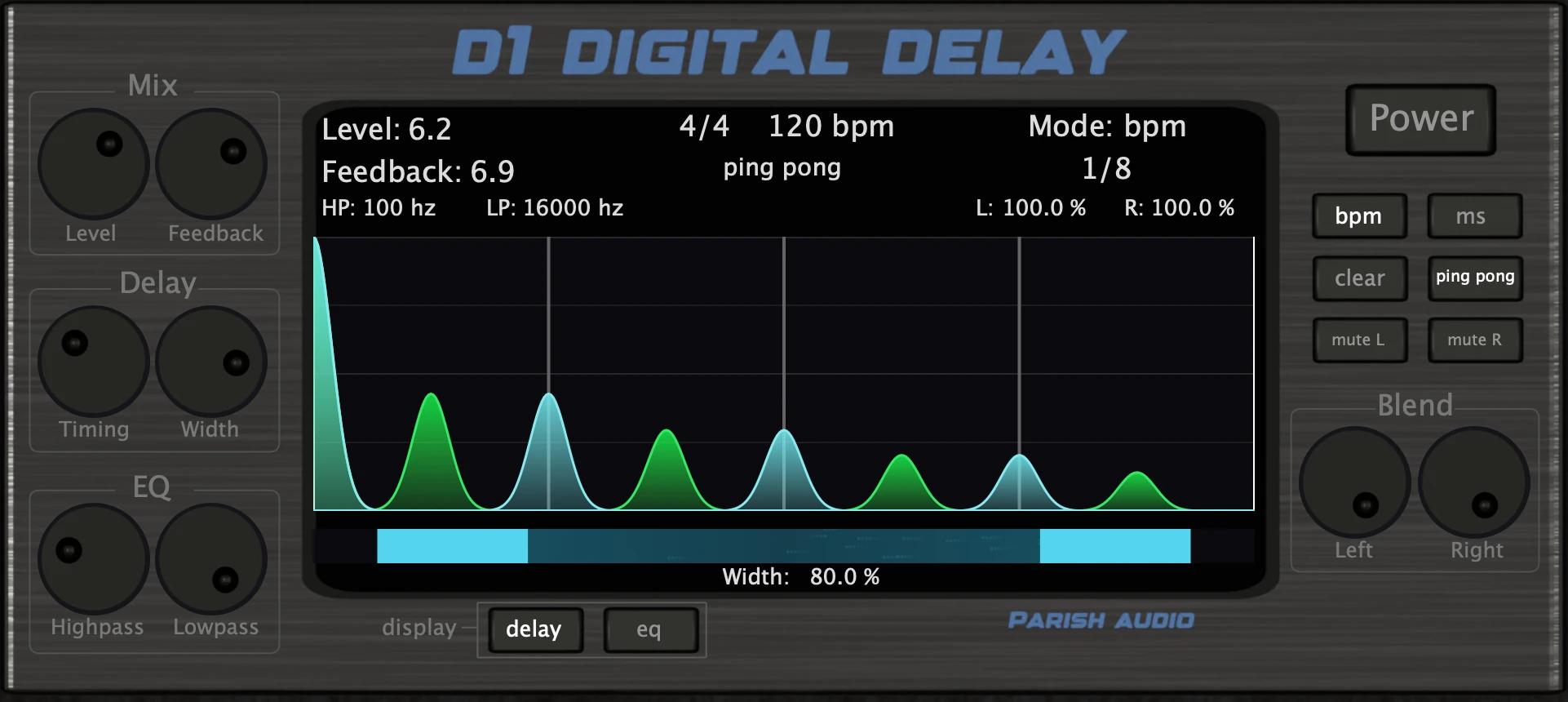
D1 Delay
5 (2)
A versatile delay plugin for everything from subtle echoes to wide, rhythmic stereo effects.
$49.95
$29.97
View
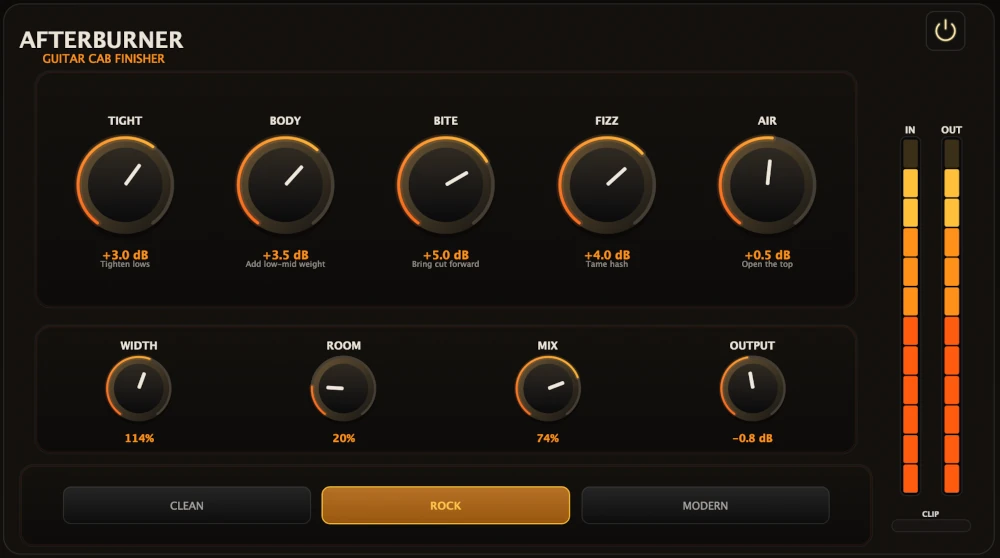
Afterburner Guitar Cab Finisher
5 (2)
Bring out more harmonic depth, sustain, punch, and presence from your favorite guitar tones.
$39.95
$23.97
View
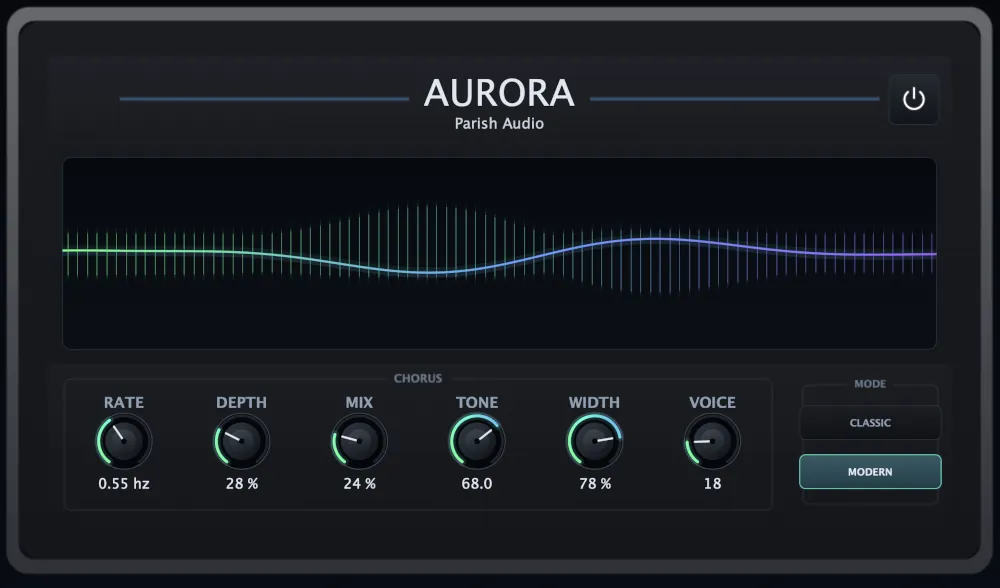
Aurora Chorus
5 (1)
A versatile chorus plugin for adding width, richness, and smooth, expressive movement.
$49.95
$29.97
View
Format: